
The add page contains all attributes associated with an inventory.
To find this feature, search for and select an Inventory, then click Edit this Inventory on the inventory page. There is a Quick Guide below for a more detailed overview this process.
This method only allows you to add one inventory item at a time. Users must be assigned the correct roles to be able to use this feature, i.e., Company Administrator or Inventory Manager.
In some cases, you may want to edit multiple (bulk) inventories.
There are several bulk editing tools available in the system:
Quick Guide
To edit an inventory item, follow the below steps:
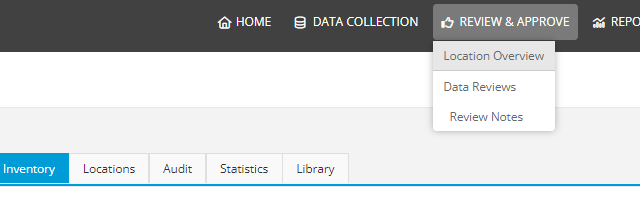
- Go to Review & Approve > Location Overview in the top menu.
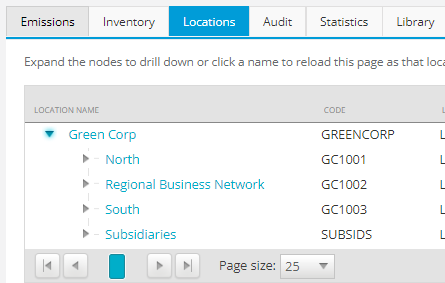
- Select the location that the inventory will be assigned to from the location-tree on the Locations tab.
This will take you to the location overview page of that location.
- Select the Inventory tab on the Location Overview page and select the Create an inventory item button.

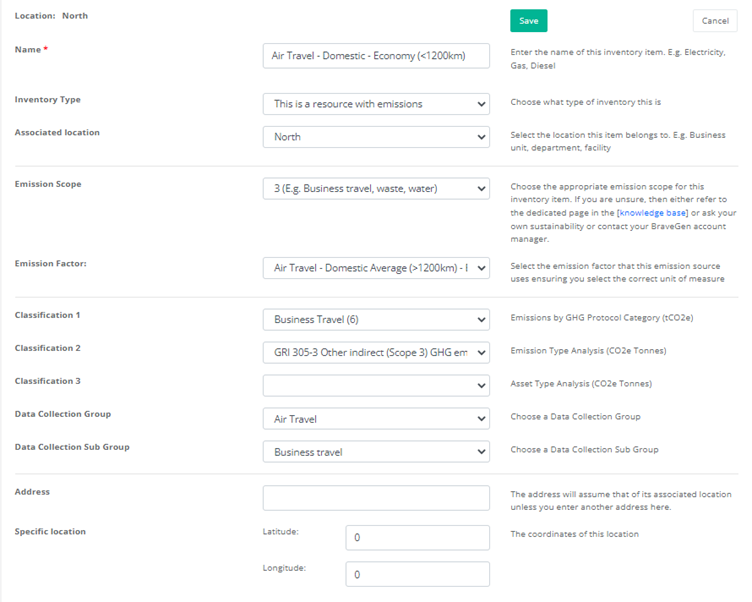
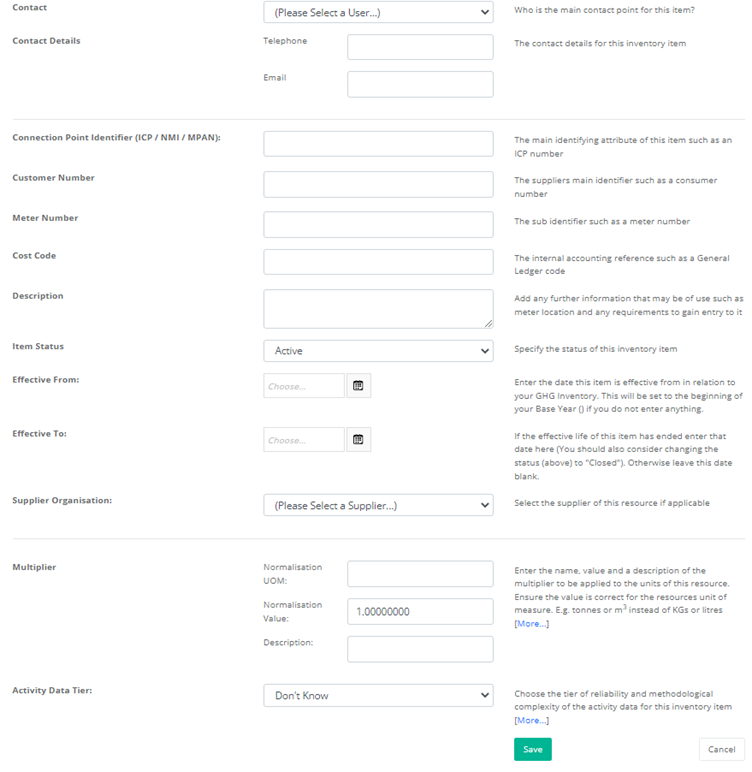
- On the Add Inventory page, you can input any of the related inventory fields.
The description of what these fields are is to the right of the field.
Good to know
- There are three inventory types:
- A resource with emissions: the most common type, e.g., electricity, fuel, waste, air travel
- Carbon asset: a carbon offset or REC (renewable energy credits)
- A metric / statistic: revenue, production levels - Every item on the inventory add page has a helpful description beside it explaining what each field need
- Suppliers need to be added on the organisation tree with the Supplier organisation type before they appear in the Supplier Organisation drop down
 Can't find what you're looking for?